
How to Setup Unrealscript Environment(UE3)
Obtain IDE (Sublime Text 3)
-
Sublime Text 3
-
Install UnrealScript IDE plugin
- Open Sublime Text 3
- Press Ctrl + Shift + P
- Type "install" (this should select "Package Controll: Install Package"), hit enter
- Search for "UnrealScriptIDE", hit enter.
-
Install UnrealScript IDE plugin
- Other choices
Install SDK
- Open Steam
- Click Library
- Click Tools - See Figure 2.1
-
Install the Killing Floor 2 - SDK / Rising Storm 2 - SDK
- Keep in mind where this is installed to, we will be including the Scripts from this install
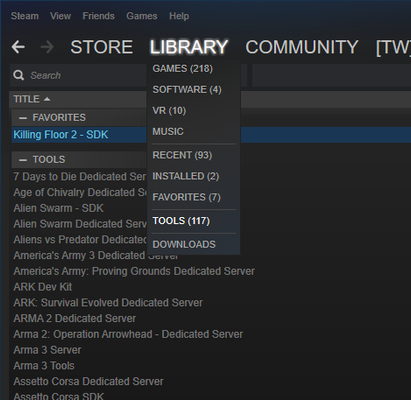
Figure 2.1
Creating New Sublime Project
-
Click Project>Add Folder to Project
- See Figure 3.1
-
Add Killing Floor 2 source Scripts
- Located in <Steam Install Location from previous step>\steamapps\common\killingfloor2\Development\Src
-
Create a folder for your Mod
- Make a new directory called "Src" in <drive:>\Users\<user>\Documents\My Games\KillingFloor2\KFGame. This is specified in KFEditor.ini, [ModPackages], ModPackagesInPath
- Make a new directory for your mod in Src directory (e.g. KFGame\Src\MyMod)
- Make a "Classes" directory in your new mod directory (e.g. KFGame\Src\MyMod\Classes)
- Put your mod source files in Classes directory (e.g. KFGame\Src\MyMod\Classes\MyMod.uc)
-
Add Folder To your project
-
Once this step is done, your folder structure should look something like this:
-
See Figure 3.2
-
-
Save your Project - Do not forget this step other wise you will have to start over
-
Tip - Save all of your Sublime projects together in a SublimeProjects folder in My Documents
-
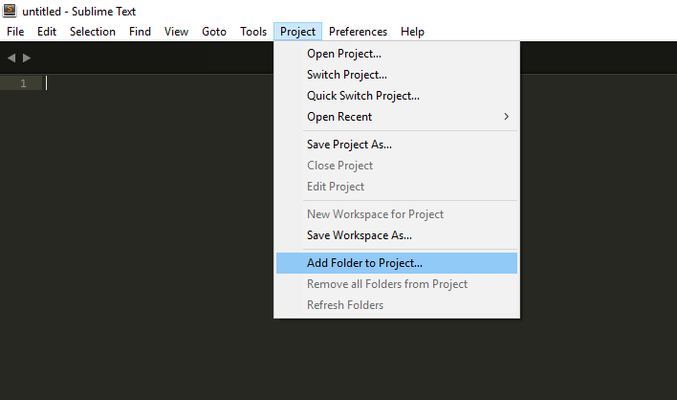
Figure 3.1
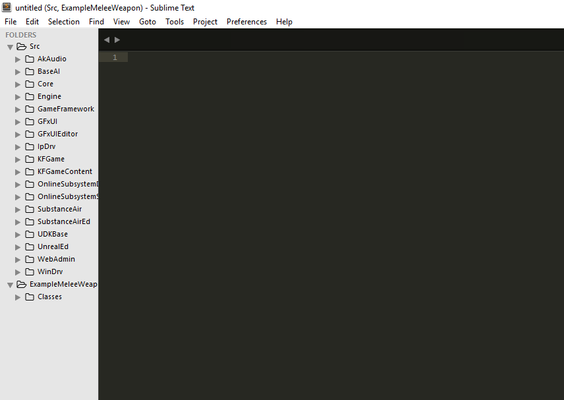
Figure 3.2
Include Your Package In KFEditor.ini / ROEditor.ini (adjust as needed for RS2V)
This step is very important, especially, if you are going to be using custom UDK files and/or other content.
NOTE: User must have at least ran and closed the Editor to generate the KFEditor.ini / ROEditor.ini file.
KFEditor.ini is located at <Drive>:\Users\<User>\Documents\My Games\KillingFloor2\KFGame\Config
ROEditor.ini is located at <Drive>:\Users\<User>\Documents\My Games\Rising Storm 2\ROGame\Config
In KFEditor.ini:
[ModPackages]
ModPackagesInPath=..\..\KFGame\Src
ModOutputDir=..\..\KFGame\Unpublished\BrewedPC\Script
ModPackages=MyMod
For ROEditor.ini
[ModPackages]
ModPackagesInPath=..\..\ROGame\Src
ModOutputDir=..\..\ROGame\Unpublished\BrewedPC\Script
ModPackages=MyMod
Creating an Example Mutator
This file will be for testing your compiler.
- Start a new script in Sublime with Ctrl-N
- Insert the Script from the Example
- Save the Script as KFMutator_Example.uc in - <Drive>:\Users\<User>\Documents\My Games\KillingFloor2\KFGame\Src\MyMod\Classes
NOTE: The Name of the file must match the name of the class.
KFMuatator_Example.uc

//=============================================================================
// KFMutator
//=============================================================================
// Example mutator class for KF2
//=============================================================================
class KFMutator_Example extends KFMutator;
/**
* This function can be used to parse the command line parameters when a server
* starts up
*/
function InitMutator(string Options, out string ErrorMessage)
{
super.InitMutator( Options, ErrorMessage );
`log("This is my Example Mutator");
}
Compiling via Command Console
-
Open the command prompt and navigate to your Steam Killing Floor 2 binaries directory (<drive:>\Steam\SteamApps\common\killingfloor2\Binaries\Win64)
- - or, navigate to that directory in Windows Explorer, shift+right-click and select "open command window here"
- Type "kfeditor make" and hit enter. The compiled .u file (e.g. MyMod.u) can then be found in your My Games directory (My Games\KillingFloor2\KFGame\Unpublished\BrewedPC\Script)
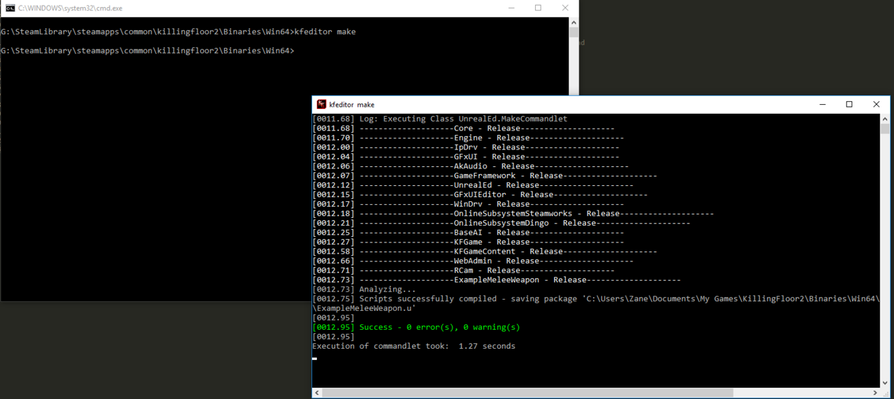
Figure 6.1
Compile via Workshop Upload Tool
- Launch the Workshop Upload tool by double clicking the Killing Floor 2 - SDK in Steam. See Figure 7.1
- Click on the Maps/Mods tab
- Create new workshop item if you do not have an existing one for your current project
- Give the Item a name then click OK. See Figure 7.2
- Make sure that your item is selected in the left pane.
- Add your Script Source to compile See Figure 7.3
- If your mod is using custom packages Add them in the Packages to brew (in our case it is ExampleMeleeWeapon)
- Click the drop down on the Script button and click Compile scripts. See Figure 7.4
- The compiler will run and output the results the in console at the bottom of the window.
-
This will create an "Unpublished" version of your mutator.
- This can be used for testing the mutator with the launch command line arguement -useunpublished. This will come later on in the tutorial
-
Click the drop down on Brew and select Brew Packages to create a published version of the mutator. See Figure 7.5
- No addition command line arguments are need to run this other than running the mutator.
QuoteHow to Run a mod / mutator
- If running with a GameInfo mod, add "?game=<packagename.scriptname>" to the command line (e.g. kf-burningparis?game=mymod.mygameinfo)
- If running with a Mutator mod, add "?mutator=<packagename.scriptname>" to the command line (e.g. kf-burningparis?mutator=mymod.mymutator). You can run with multiple mutators by separating them with commas (e.g. kf-burningparis?mutator=mymod.mymutator1,mymod.mymutator2)
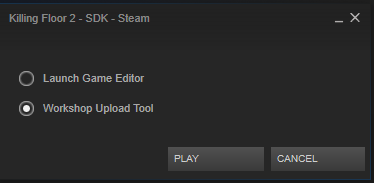
Figure 7.1
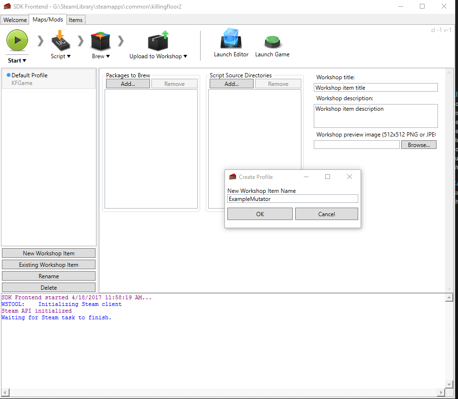
Figure 7.2
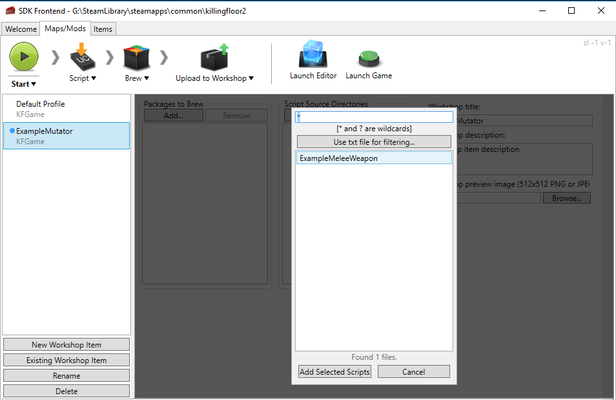
Figure 7.3
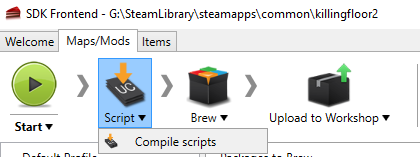
Figure 7.4
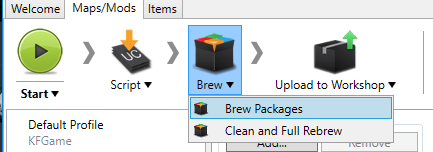
Figure 7.4
Test To Verify The Mutator is Working
- Open the command prompt and navigate to your Steam Killing Floor 2 binaries directory (<drive:>\Steam\SteamApps\common\killingfloor2\Binaries\Win64)
-
run the following command KFGame.exe KF-BioticsLab?mutator=MyMod.KFMutator_Example -log
- If your have not brewed your mod, remember to add the command -useunpublished
- This command can also be run through the console in game by pressing F3 or ` to open the console
-
When the game launches, a window will appear containing your log.
- (An output of this log can be found in the folder: <drive:>\Users\<User>Documents\My Games\KillingFloor2\KFGame\Logs)
- In the log we should see the line This is my Example Mutator and Mutators MyMod.KFMutator_Example See Figure 8.1
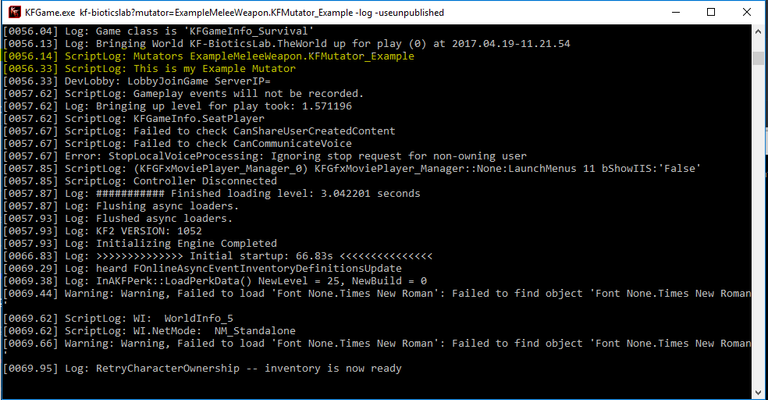
Figure 8.1

Recommended Comments
There are no comments to display.
Create an account or sign in to comment
You need to be a member in order to leave a comment
Create an account
Sign up for a new account in our community. It's easy!
Register a new accountSign in
Already have an account? Sign in here.
Sign In Now